Choose a folder.
NEXT opens the first supported photo in Photoshop.
 NEXT For Adobe Photoshop
Choose a folder and edit a photo in Photoshop. Press NEXT to flatten it, save over the original, close it, and open the next photo.
Try every feature for 48 hours.
$19 one time · Two computers · No subscription
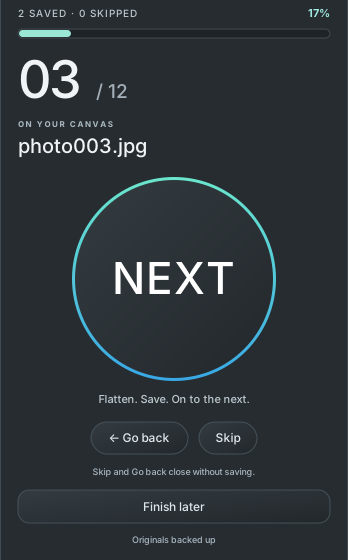
NEXT opens the first supported photo in Photoshop.
Retouch, adjust, or crop it using your usual Photoshop tools.
NEXT flattens the current photo, saves over its original, closes it, and opens the next file. JPEGs save at quality 12.
NEXT replaces originals with flattened edits. Original backups are on by default. Leave Keep original backups enabled to keep an untouched copy.
Reopen the previous file when it needs another edit.
Save your place, then choose the same folder to resume. Save any unfinished Photoshop edits before quitting.
Assign eight of your Photoshop actions and run them without advancing the queue.
Go back closes the current queued photo without saving before reopening the previous file. Skip closes the active Photoshop document without saving, even when it is not the queued photo.
Finish later saves progress in NEXT-session.txt and leaves unfinished edits open in Photoshop. Choose the same folder to resume. The progress file is removed when the session is complete.
Quick actions run as recorded, including any save or close commands they contain.
One installer for the trial and the paid license.
Use every feature with your own photos. No card needed.
The trial starts on first launch with an online activation. It then works offline until its 48-hour end.
Download the free trial ↓Version 2.0.0 · ZIP includes the installer and setup guide. Read the guide.
A license for two active computers. Your license code arrives by email after payment is confirmed.
Checking secure checkout availability…
Secure payment through Stripe. Internet is needed to activate and refresh your license. A paid license works offline for up to seven days. License details.
You’ll need Adobe Photoshop 26 or later and the Creative Cloud desktop app.
Read the setup guide ↗Download the ZIP, extract it, then double-click NEXT-2.0.0.ccx. Follow the Creative Cloud installation prompt.
In Photoshop, choose Plugins → NEXT → NEXT. Connect online on first launch to start your trial. Choose a photo folder and begin editing.
In NEXT’s panel menu, choose Enter license…, paste your emailed code, then choose Activate license.
Questions? Contact FastGlass support. Interface previews are illustrations, not captures of a running Photoshop panel.