Send a full-resolution JPEG copy of your frontmost Photoshop document straight to the SmugMug gallery you choose. Your layered original stays open and unchanged.
One payment · $19 USD · Two active computers No subscription. Use your own SmugMug account.
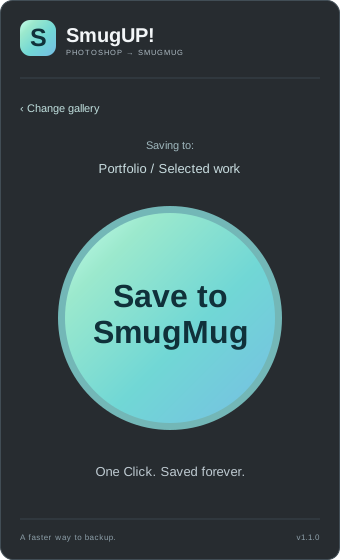
SmugUP! · Ready to saveInterface preview
Illustrated interface with a generic gallery. No customer photographs are shown.
Adobe Photoshop 26.10+macOS & WindowsFull-size sRGB JPEGYour original stays unchanged
Choose a gallery. Then it’s one button.
01
Sign in once.
Connect your own SmugMug account from the panel. SmugUP! remembers the connection on your computer.
02
Find your gallery.
Expand folders, browse nested galleries, or search by name. Create a new private gallery when you need one.
03
Press Save.
SmugUP! makes a flattened, full-size sRGB, 8-bit JPEG copy and uploads it directly to your chosen gallery.
Your original stays as you left it. SmugUP! works on a duplicate, then closes that temporary copy after uploading. There’s no extra local JPEG to tidy up.
A faster way to backup.
A clear destination. A clear finish.
Keep the panel simple once your gallery is chosen. The large round button is ready for your next finished photo.
Folders that make sense. Expand only the folders you need, or search to narrow a large library.
Your gallery is remembered. Come back to the same destination, or choose Change gallery.
Progress you can see. Follow the upload bar and wait for SmugMug’s confirmation.
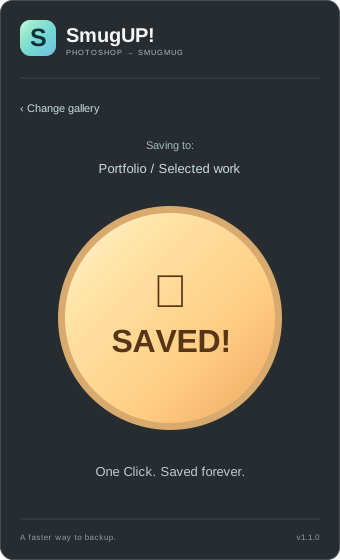
A little moment of “done.” A gold checkmark and SAVED! confirm success, then gently return to the normal button.
Illustrated successful-upload state.
SmugUP! for $19.
A focused Photoshop plug-in. One payment, no subscription.
Save to your gallery.
$19USD · One payment No subscription
A license for two active computers for your use. After Stripe confirms payment, your download, setup guide, and SU1 license code arrive by email.
Checking secure checkout availability…
Activate with your license code before saving. Deactivate a computer to move an activation. Your SmugMug account is separate from this purchase. License details.
Before you start.
Adobe Photoshop 26.10 or newer.
Creative Cloud desktop app to install the plug-in.
Your SU1 purchase code to activate SmugUP!.
Your own SmugMug account.
Internet for activation, license verification, sign-in, and uploads.
SmugUP! creates a finished JPEG copy for SmugMug. It does not save a layered Photoshop document to the gallery.
Your purchase email includes the download, setup guide, and SU1 license code.
Install the plug-in.
Extract your purchase download and double-click the included .ccx installer. Follow the Creative Cloud installation prompt.
Activate your purchase.
Open SmugUP! from Photoshop’s Plugins menu. In the panel menu, choose Enter license…, paste your emailed SU1 code, and choose Activate. The license covers two active computers for your use.
Connect to SmugMug.
Choose Sign in to SmugMug and connect your own account. SmugMug sign-in is separate from your FastGlass license. You don’t need to register an API application or enter API keys.
Choose a gallery and save.
Pick a destination, return to your image, and press the round button. The next upload uses whichever Photoshop document is frontmost when you press Save.
To move your license to another computer, deactivate an existing computer first.
A few useful details.
What does the $19 purchase include?
One payment buys a SmugUP! license for two active computers for your use, with no subscription. After Stripe confirms payment, the download, setup guide, and SU1 license code are emailed to your checkout address. Activate the code in the panel before using Save.
Can I move to another computer?
Yes. Deactivate the license on a computer you’re moving from, then activate your SU1 code on the new computer. Up to two of your computers can be active at once.
Do I need an internet connection?
Yes. Internet is needed for license activation, periodic license verification, SmugMug sign-in, and uploads. Your SmugMug account is separate from the SmugUP! purchase.
What happens to my Photoshop document?
SmugUP! duplicates it, flattens the copy, converts the copy to sRGB and 8-bit RGB, and uploads a full-resolution JPEG. It then closes the copy. Your original is not flattened, converted, or saved by SmugUP!.
Which document modes are supported?
Use 8-bit or 16-bit RGB, CMYK, Lab, or grayscale documents. Prepare a suitable copy first for specialized color modes or 32-bit HDR documents. SmugUP! does not resize the image.
Where do my photographs go?
JPEGs upload directly from Photoshop to SmugMug. The sign-in service handles authorization; it does not receive the photograph.
Can I change the gallery or create one?
Yes. Change gallery returns to the folder browser. You can search, expand nested folders, or create a new private gallery at the top level of your account. A newly created gallery is selected automatically.
Questions? Contact FastGlass support. SmugUP! is independent software and is not affiliated with Adobe or SmugMug. Interface previews are illustrations, not captures of a running Photoshop panel.
 SmugUP!